Routes
Create a series of waypoints on the map and replay them at your chosen speed. Routes can follow straight lines between waypoints or snap to real roads using OSRM routing. Route data is stored locally in the on-device Room database — no cloud sync, no account required.
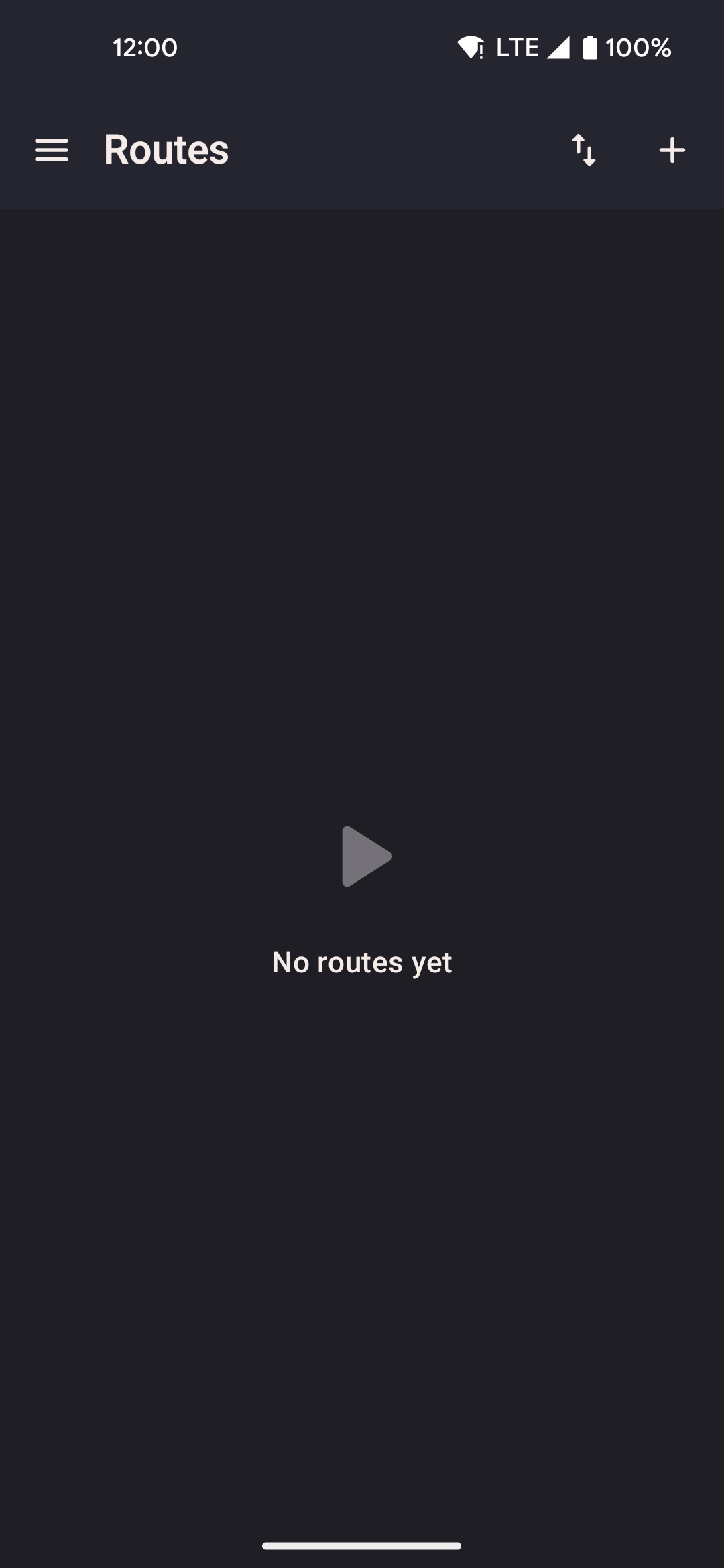
- Tap the add button to create a new route by placing waypoints on the map or importing a file.
- Tap a saved route to start it; options include loop, reverse, and return-to-start.
- Import routes from GPX files, GPS Joystick, or YAMLA via the overflow menu.
Route types
| Type | How it works |
|---|---|
| Straight | The replay engine interpolates positions along straight line segments between waypoints at the active speed. No network request is made. Position updates are emitted at the service tick rate (~1 Hz). This is the default type for GPX-imported routes. |
| Guided (road-following) | Each segment between waypoints is sent to the OSRM routing API at router.project-osrm.org. OSRM returns a snapped polyline following real roads. The Walk and Run profiles use the foot routing profile; the Bike profile uses the cycling profile. If OSRM is unreachable, the segment falls back to a straight line. Route geometry is stored after the first resolve — subsequent replays do not re-request OSRM. |
Replay options
| Option | Description |
|---|---|
| Loop | When the last waypoint is reached, the replay restarts from the first waypoint. Continues indefinitely until stopped manually. |
| Reverse | Plays waypoints in reverse order (last → first). Can be combined with loop. |
| Return to start | After the final waypoint, the simulated device walks back to the first waypoint before stopping. Useful to avoid a large positional jump when ending a session. |
| Pause / Resume | Pauses forward movement while keeping the background service running and the current position held. Available from the widget and the routes screen while a route is active. |
Route creator
Place waypoints by tapping the map. The route previews as a polyline as you add points.
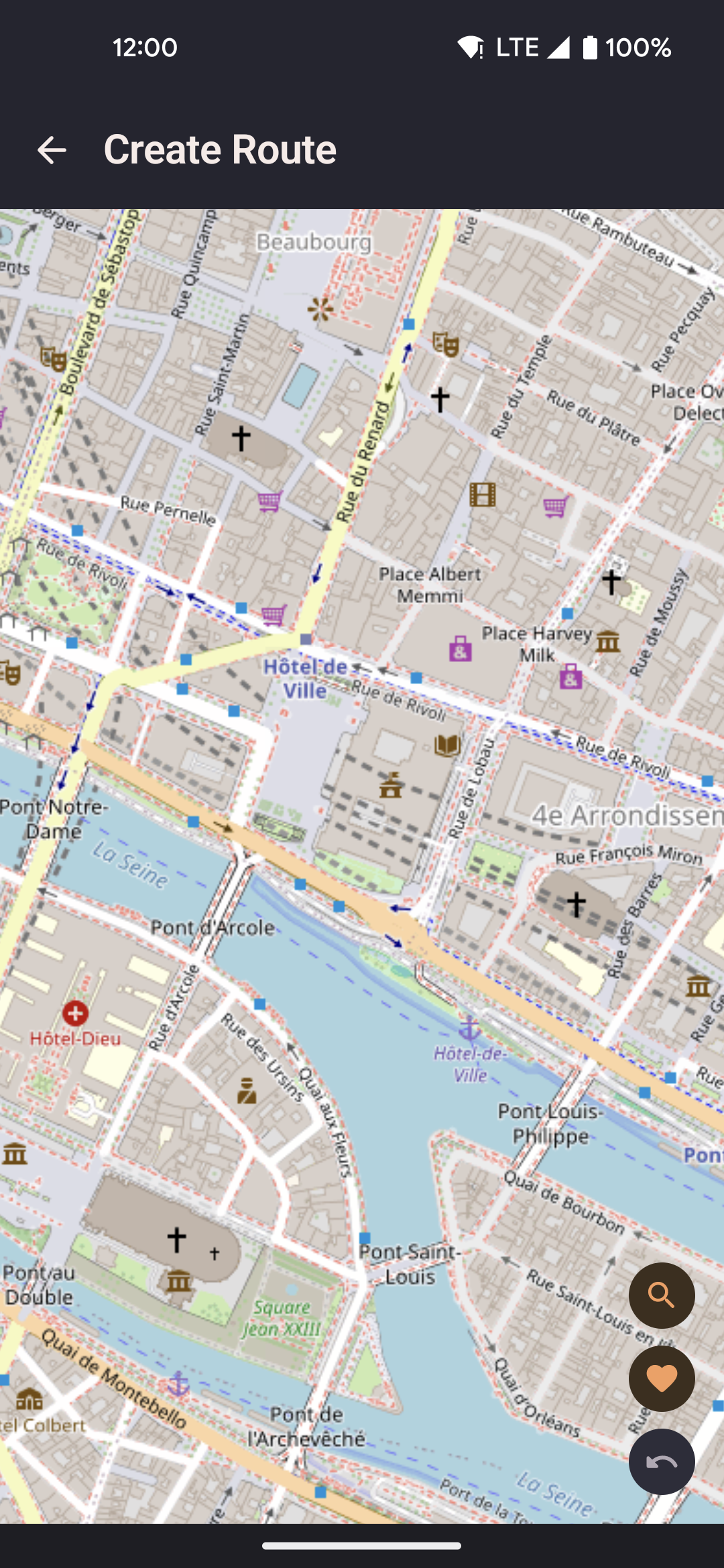
- Search for a location by name using the search FAB — queries the Nominatim geocoder (nominatim.openstreetmap.org).
- Undo the last waypoint with the undo button.
- Choose between straight-line and road-following (OSRM) before saving.
- Record mode: tap record to capture your real device's GPS trace as a new route in real time.
Route detail
Edit an existing route: rename it, reorder or delete individual waypoints, change the route type.
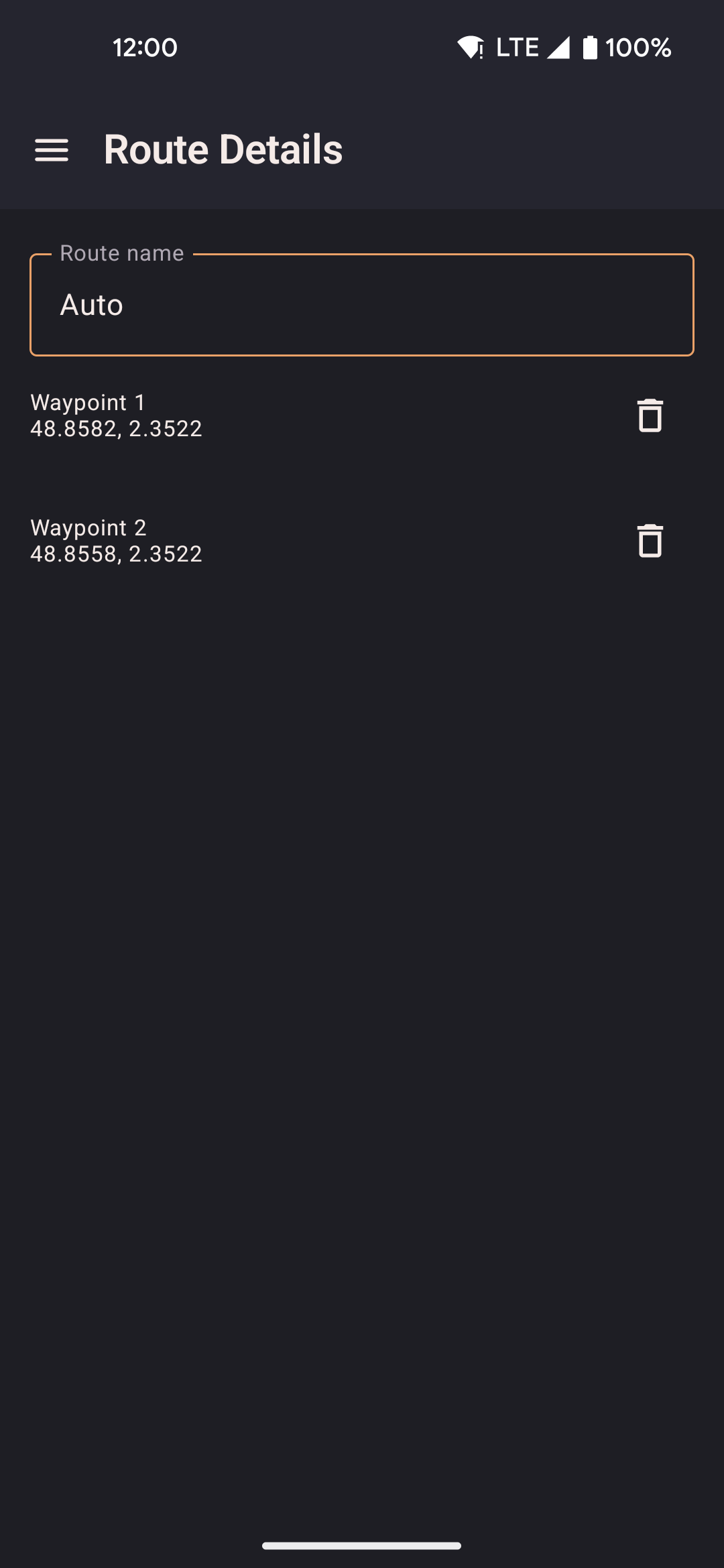
- Drag waypoints in the list to reorder them.
- Tap a waypoint to highlight it on the embedded map.
- Changing route type from straight to guided re-resolves OSRM for each segment on next replay.
- Delete the route permanently from the action bar.
Import formats
| Format | Notes |
|---|---|
| GPX | Standard GPS Exchange Format. Track points (<trkpt>) and route points (<rtept>) are both supported. Imported as straight-line routes. Elevation data in GPX files is ignored (locationjoystick manages altitude separately via the GPS Realism settings). |
| GPS Joystick | JSON export format from the GPS Joystick app. Routes and favorites are imported. Speeds are mapped to the nearest profile where possible. |
| YAMLA | JSON export format from the YAMLA app. Favorites and speed settings are imported. Routes are imported as straight-line segments. |
| locationjoystick JSON | Native backup format. Preserves all fields including route type, waypoints, and metadata. Use Add to merge with existing data or Replace to overwrite. |